

Panoramata's Library lets you store all your saved assets in one organized space. Here, you can conveniently access and manage all the creatives from your Lists instead of keeping them scattered across different places.
From your main dashboard, simply click "Your Library" tab under Lists and Boards in the sidebar menu.
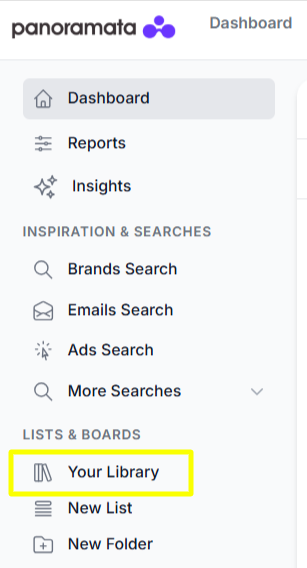
Your Library contains all the Lists you’ve created, along with the assets you’ve saved under each List, including the following:
You can quickly find the asset you need directly from your Library using the search feature, so you don't have to browse through multiple Lists when looking for a specific creative or inspiration.
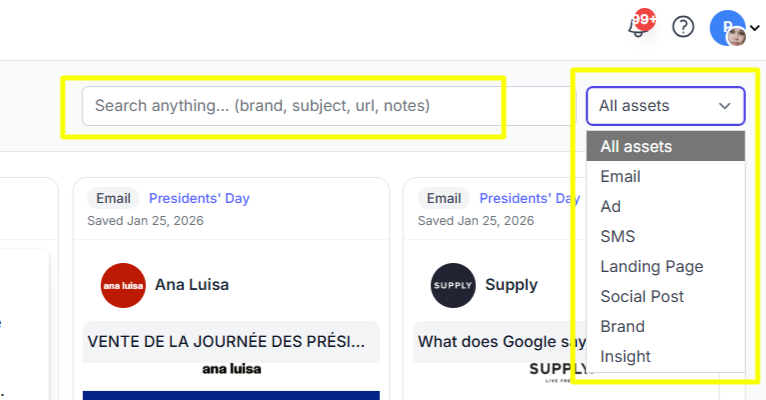
To find an asset, use the search bar to enter a relevant keyword or phrase. You can search using details such as a brand name, subject, URL, campaign, topic, or other terms related to the asset.
The search results will display the assets that match your search. To help narrow down your results, you can also filter the results by the type of creative you want to view.
If you're targeting only a specific List or Lists, you can narrow your search even more by selecting your desired List/s on the left side of the screen. Just tick the box next to the List/s you want to search through.
If you have multiple Lists, it's helpful to use the search bar. Just type the name of the List to make it appear right away without scrolling through the entire collection.
In the Library, you can group related Lists into Folders.
Just select the Lists you want to group together. Then, choose your desired Folder from the dropdown menu and hit the Move button. Now you have these Lists under one Folder.


1-minute signup, no credit card required
with our experts


