

The benchmark reports you create may be visible to the members of your team, depending on the report's sharing permissions.
If the benchmark is set as private or restricted to your account only, your team members will not be able to access it.
If a benchmark is shared with your team, the team members may be able to view and/or edit it. This is commonly done to allow teams to share insights and for collaborative efforts.
When creating a Benchmark, you'll see the options for who can access it.
For a private Benchmark, simply choose the "Only Me" option from the dropdown, then proceed with creating the Benchmark.
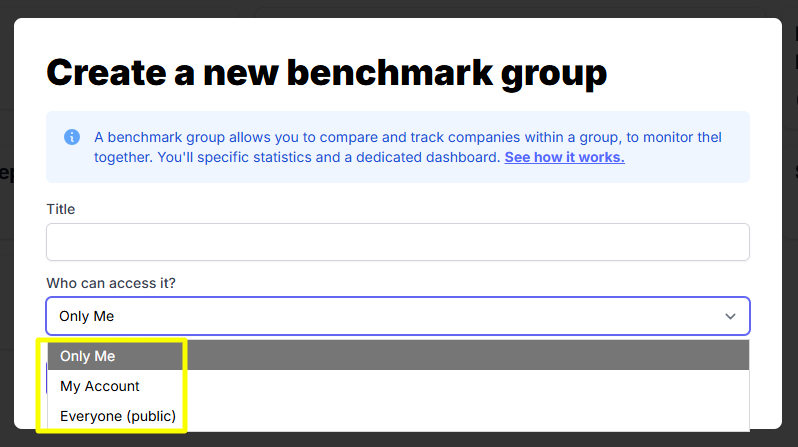
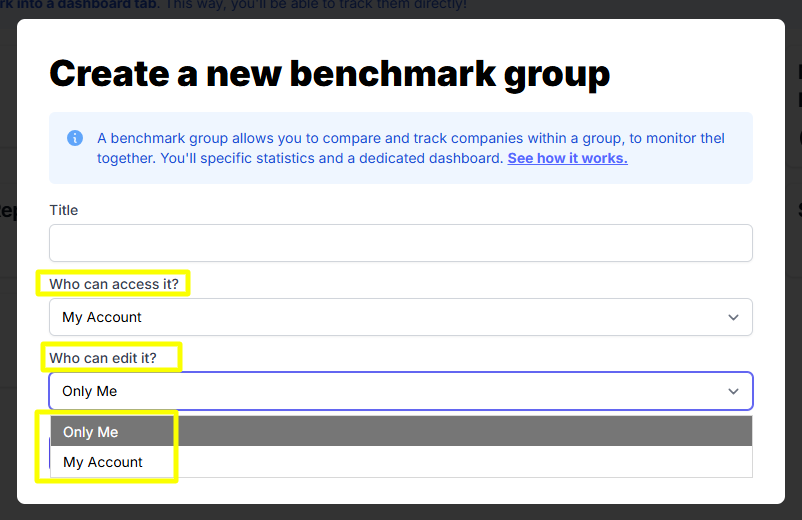
To create a shared Benchmark, choose "My Account" from the dropdown selection. This means they’ll be able to view it.
Then you'll have two options for who can edit the Benchmark.
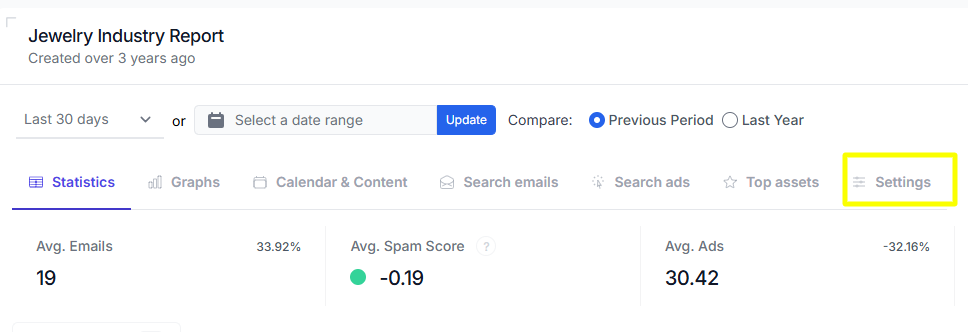
If you wish to change a Benchmark's settings to either make it private or accessible to your team, you can do so by clicking the Settings tab.
Then, click the button as shown below:
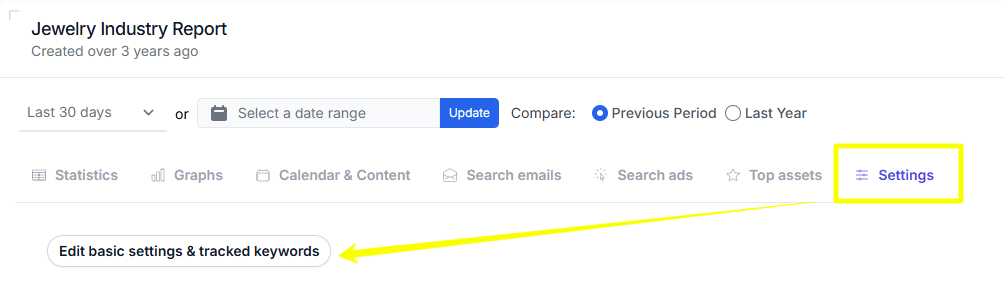
Now choose what permission you'd like from the dropdown selection.
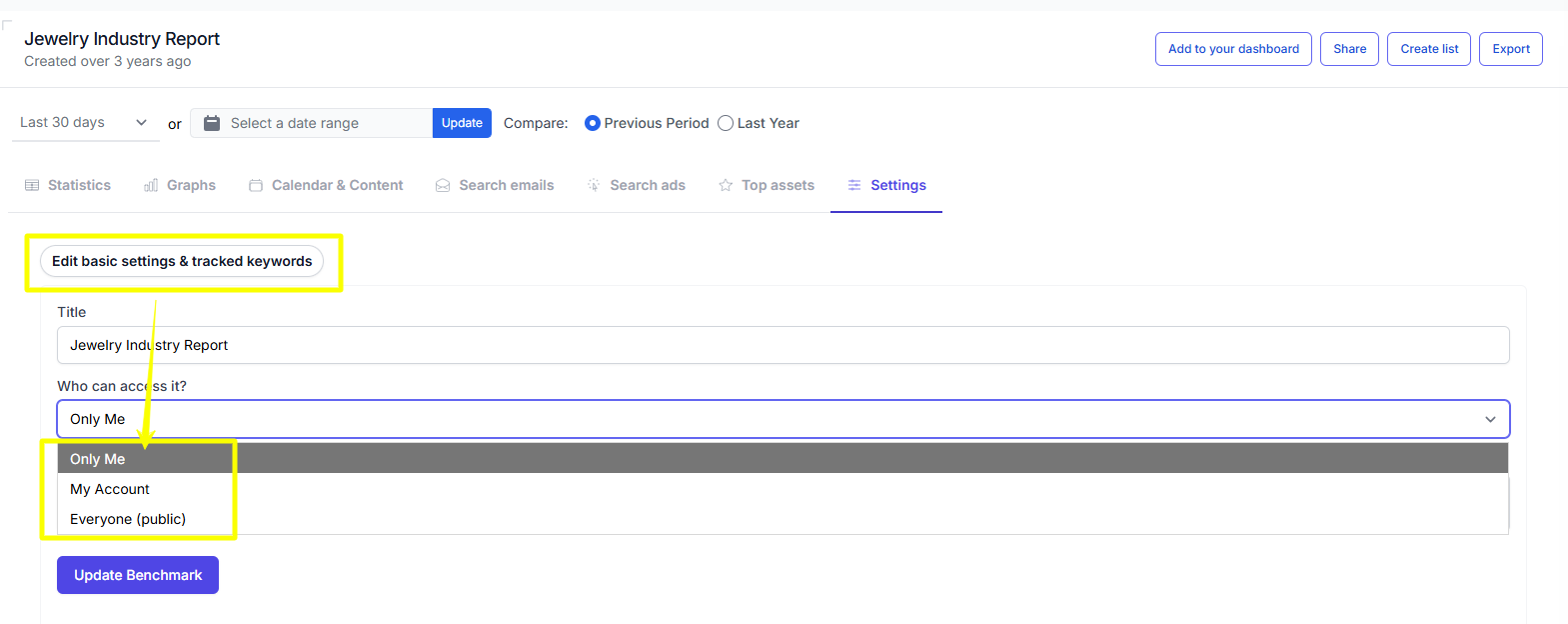
Hit "Update Benchmark" once done.


1-minute signup, no credit card required
with our experts


