

The dashboard is updated in real time, and you receive a summary every Monday morning by email. It shows:
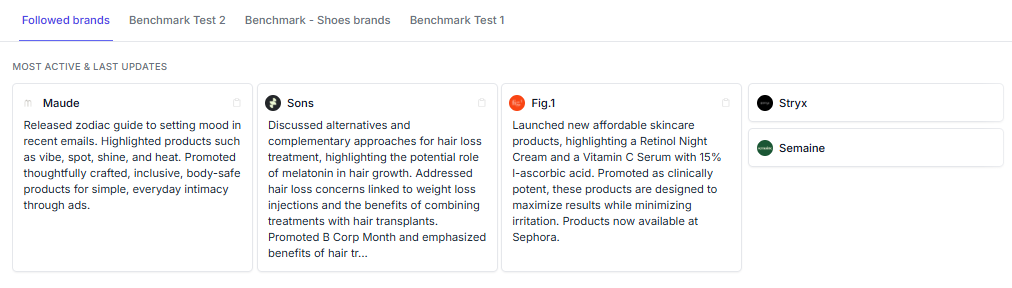
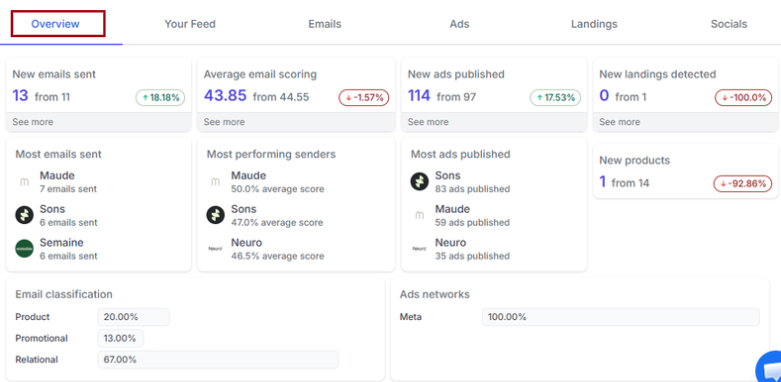
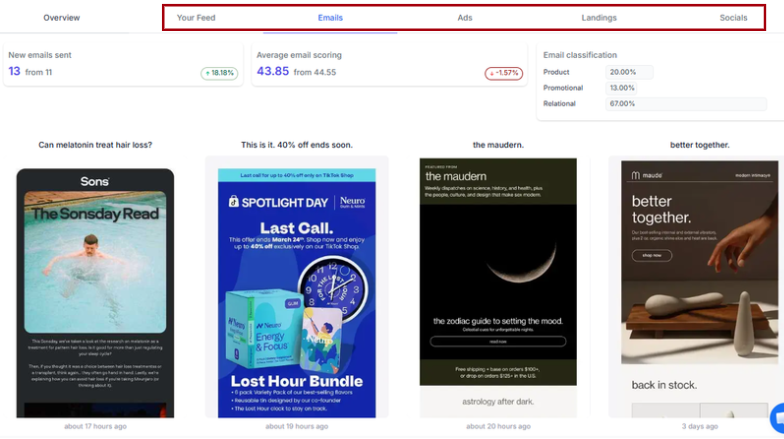
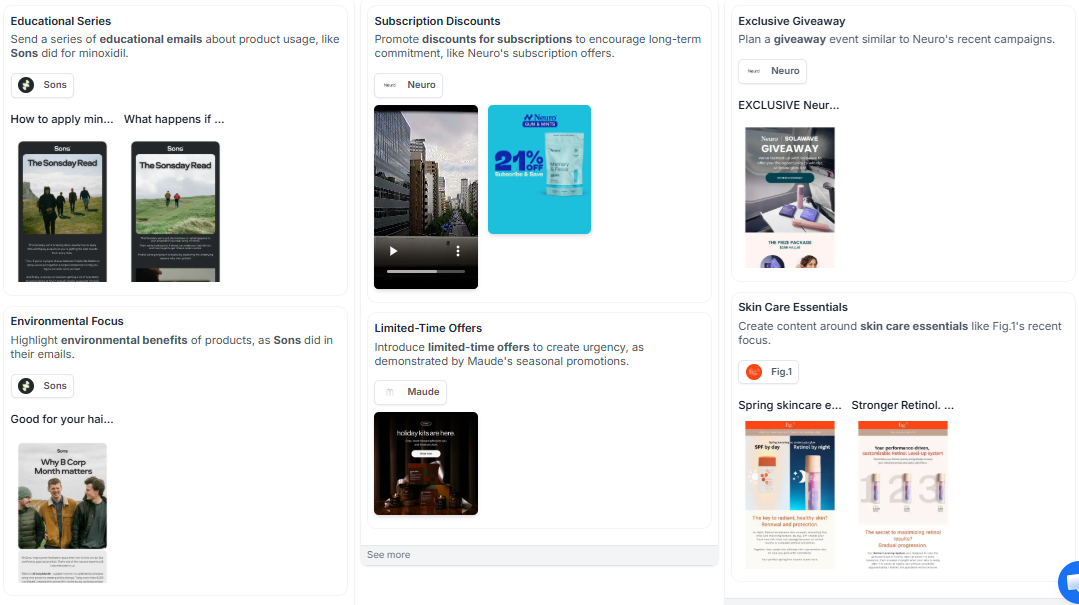
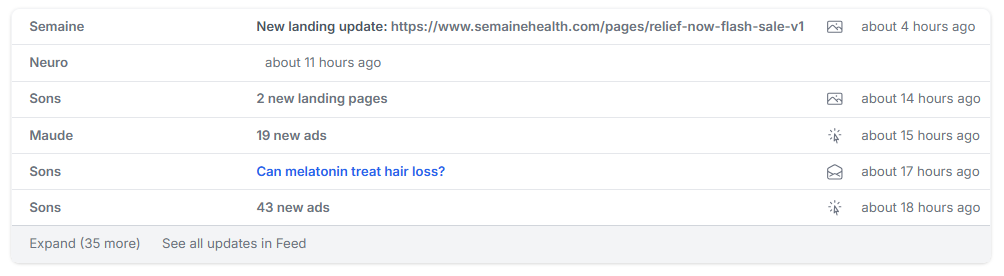
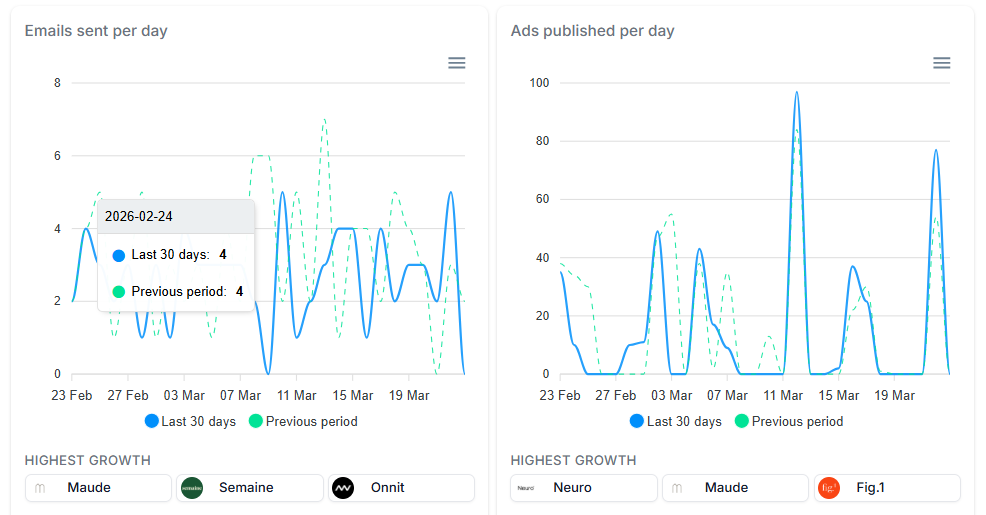
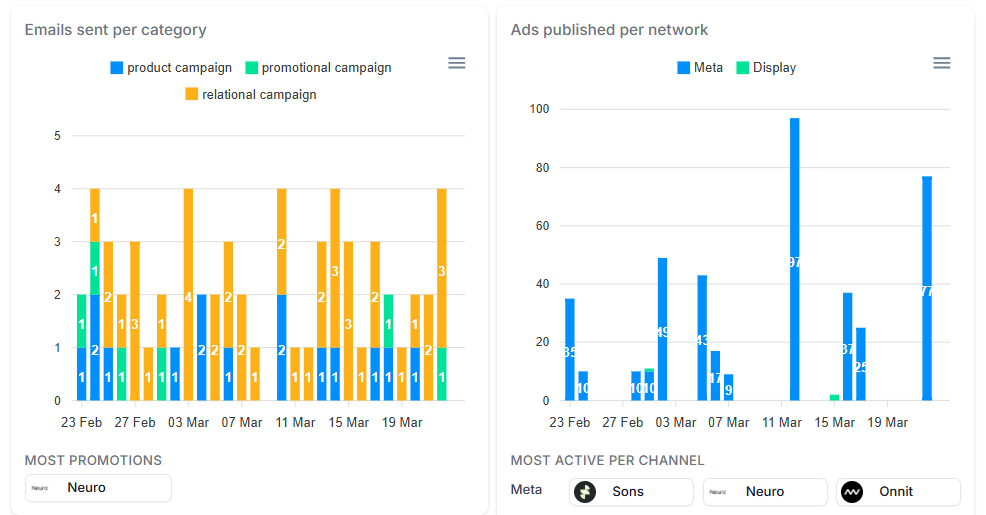
To track specific brands, add them to the home page by either following them or including them in a benchmark.
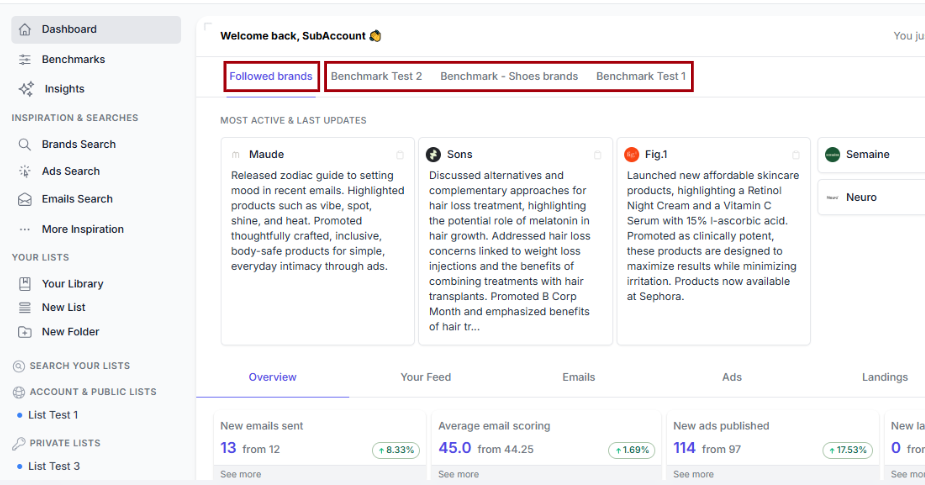
You can add any brand to this dashboard by following it:
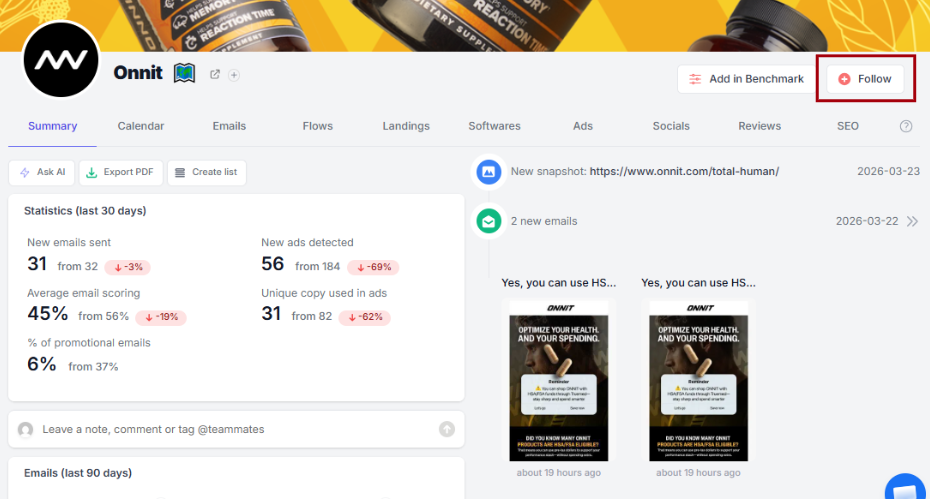
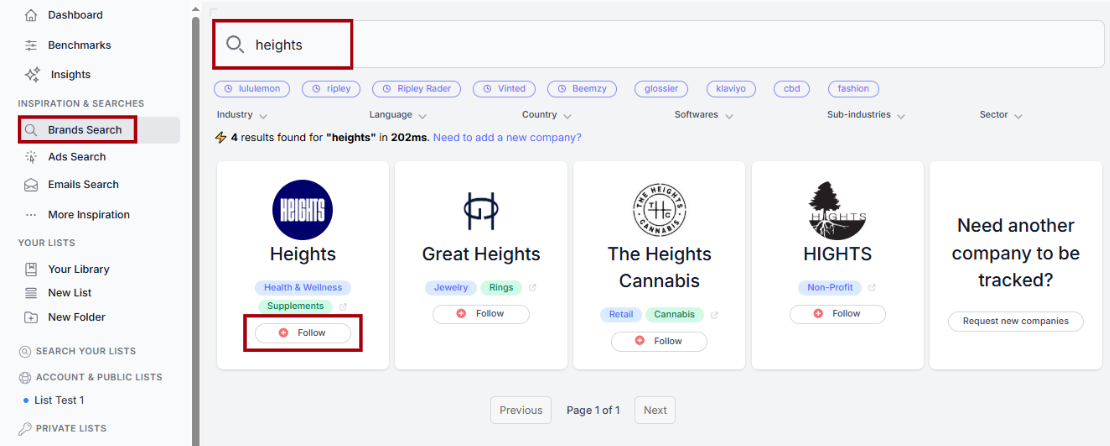
After you follow your first brand, the Followed brands’ dashboard is automatically created on the home page.
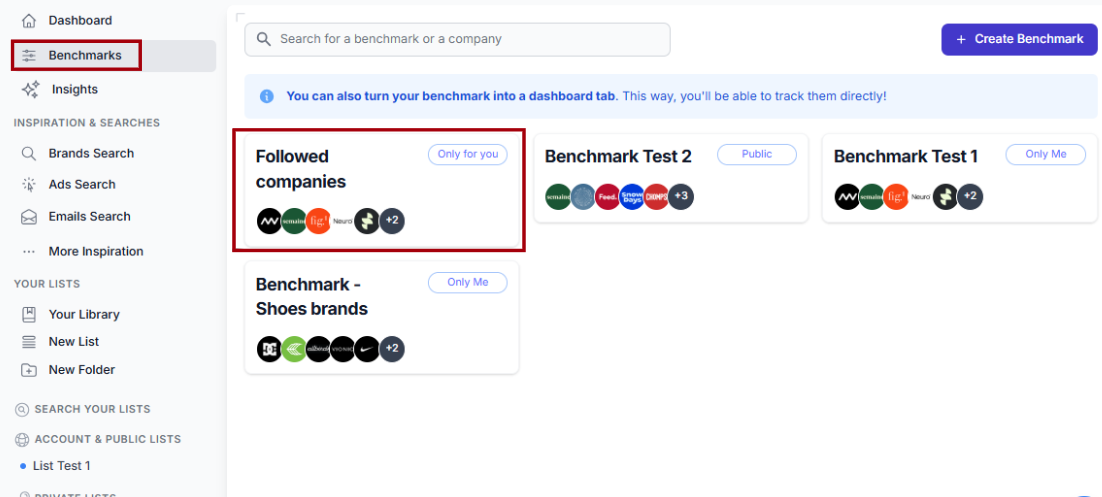
A report called Followed Brands is also generated at the same time.
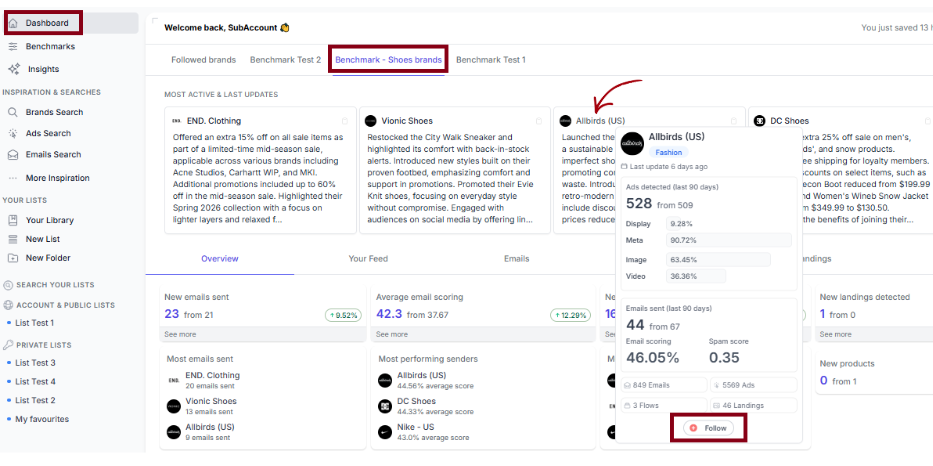
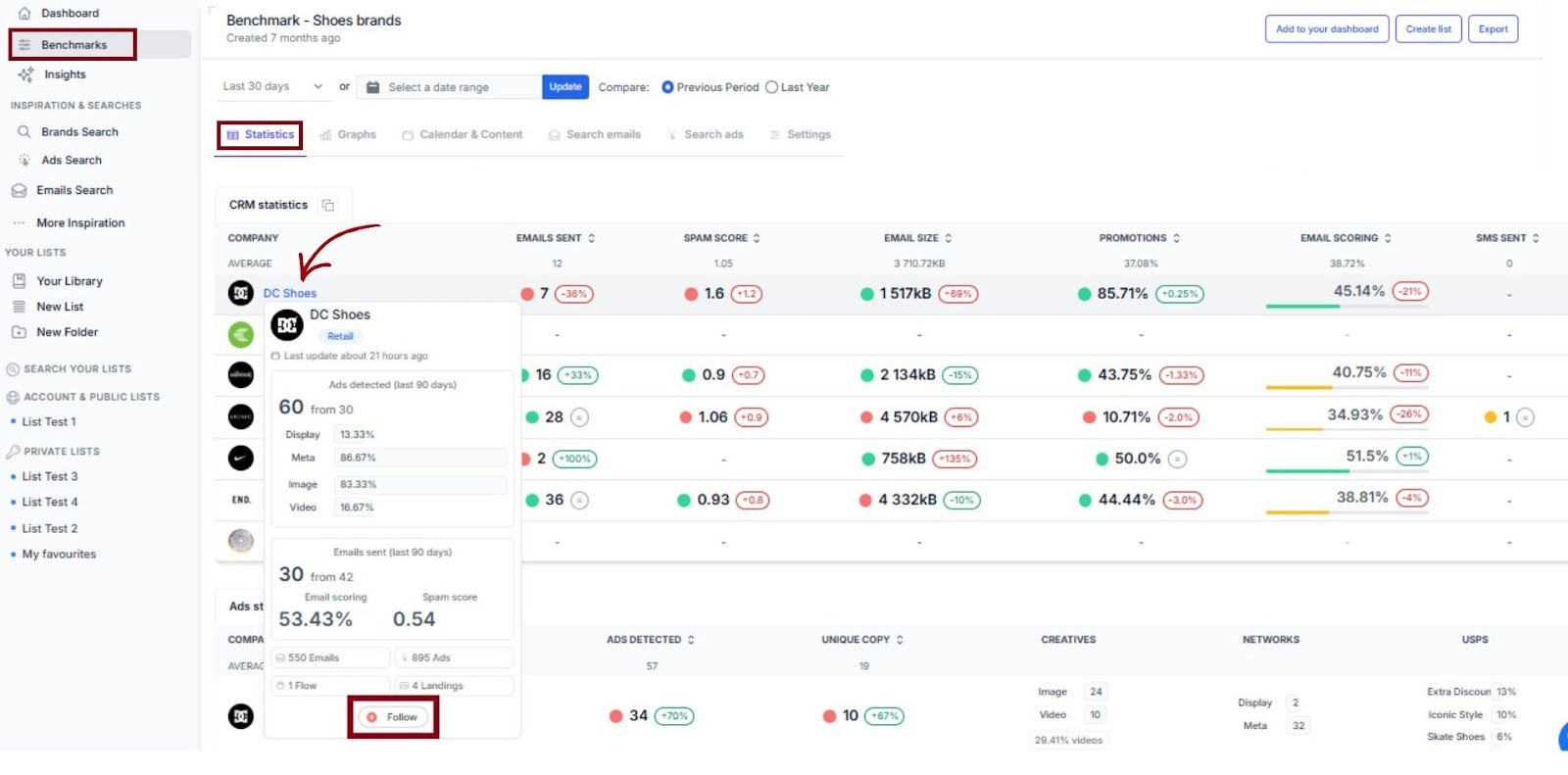
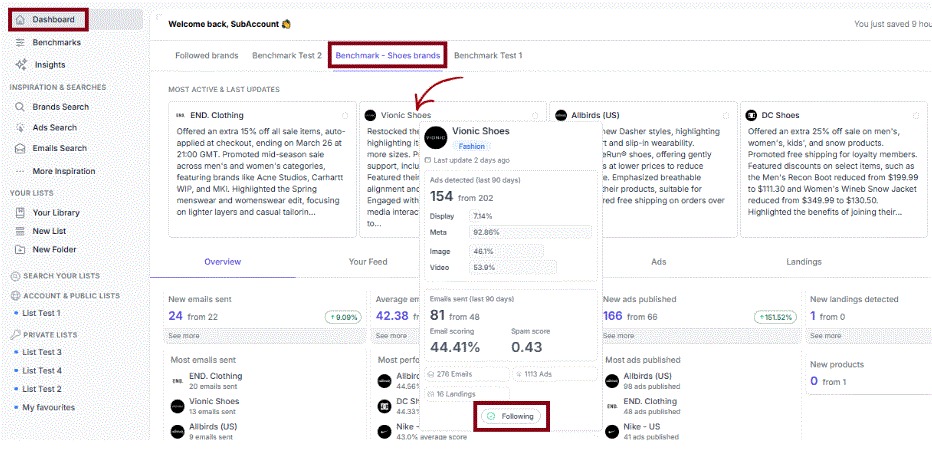
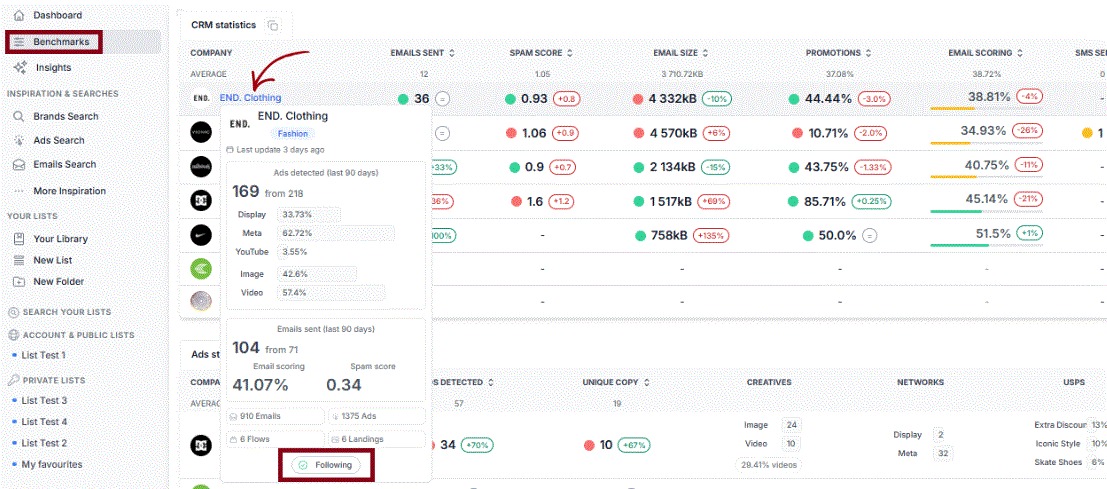
On the benchmark page (Settings tab) or its dashboard on the home page, hover over a brand name. A window will appear, where you can follow the brand (the Follow button is located at the bottom of the window).
All brands you follow are automatically added to the Followed Brands group, and its dashboard and benchmark data update accordingly.
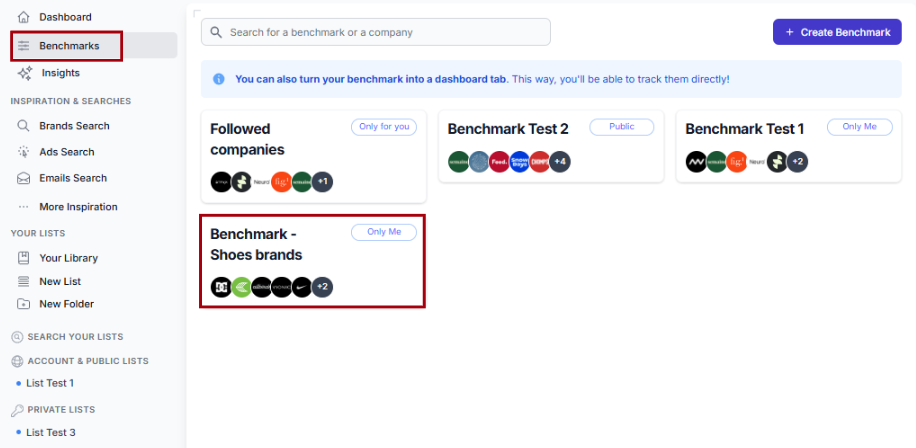
If you want to track different groups of competitors, you can create multiple benchmarks based on your own needs or criteria.
Each benchmark you create generates its own dedicated dashboard on the home page, under the same name.
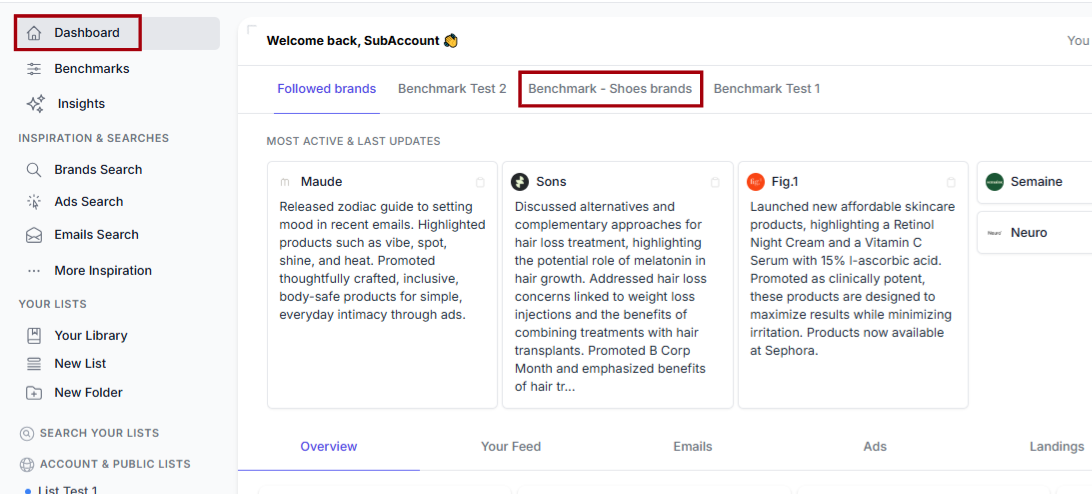
In the top horizontal menu on the home page, you can access all your dashboards.
From left to right, you will see:
To add more brands to an existing benchmark dashboard, follow these steps:
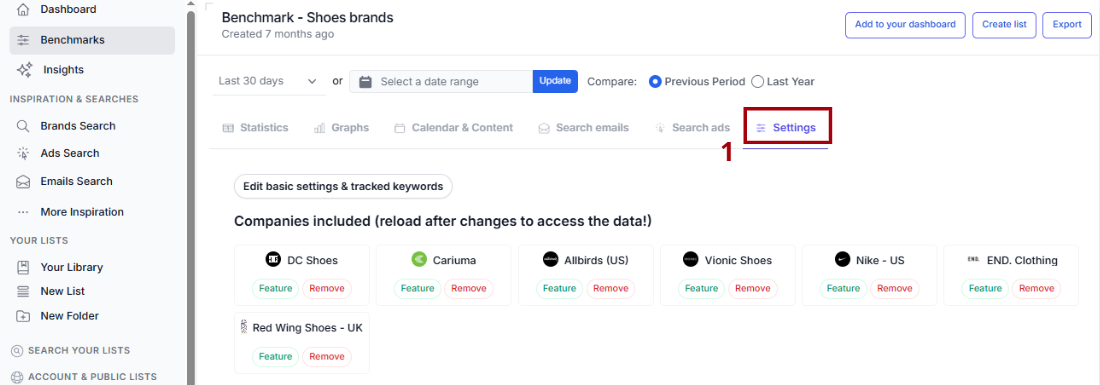
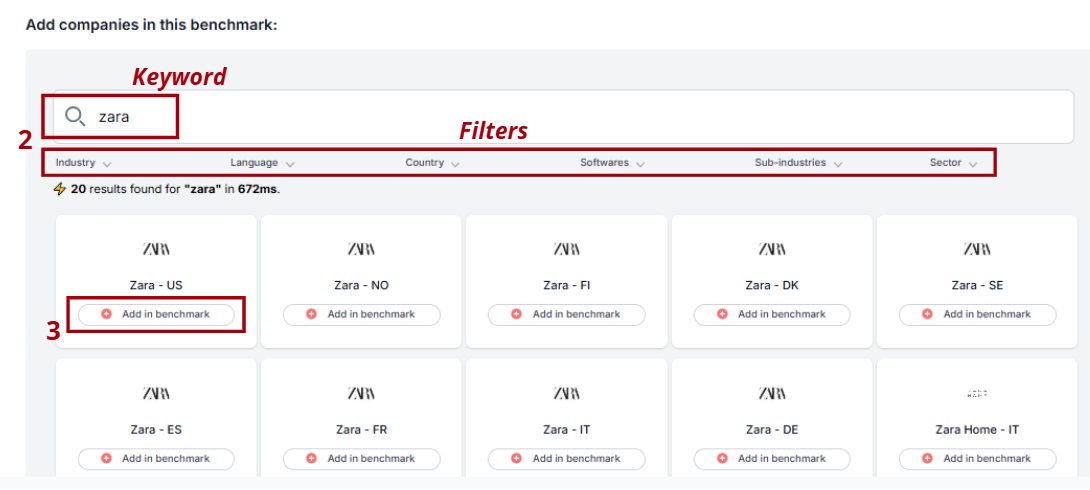
Then, the dashboard will automatically update to include the newly added brands.
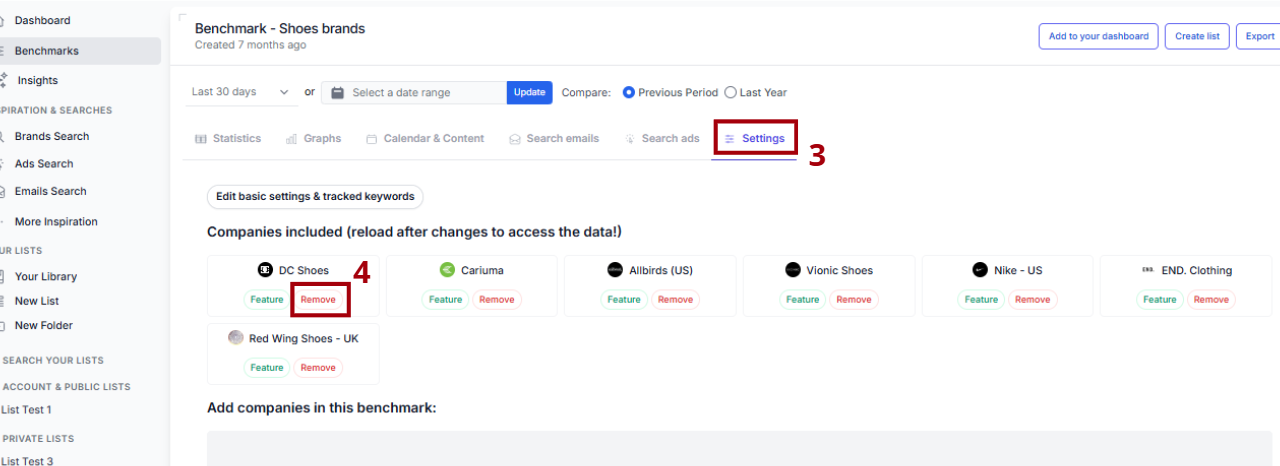
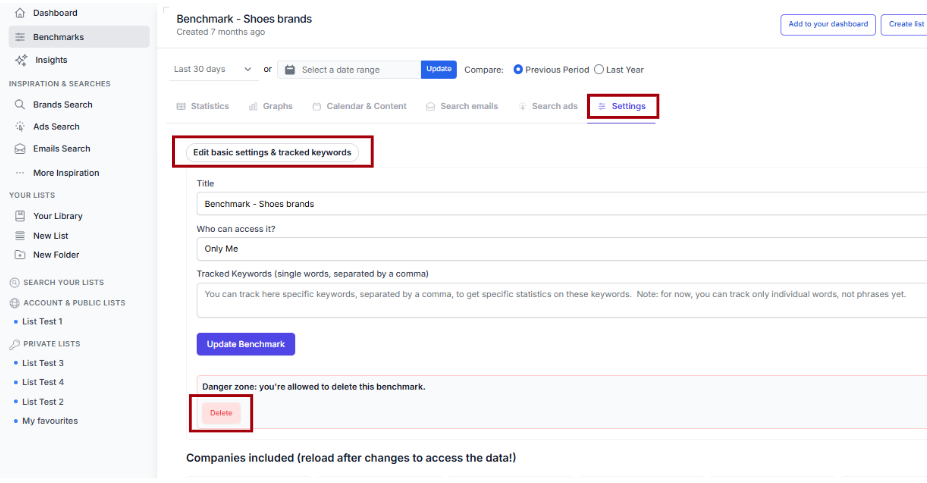
To remove a brand from a benchmark’s dashboard (for example, removing DC Shoes from Benchmark – Shoes brands):
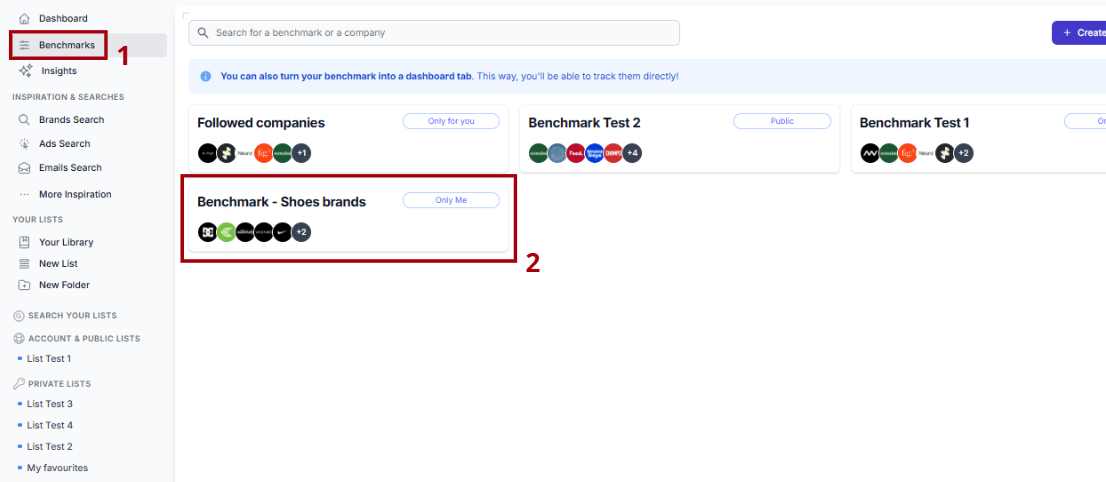
If you no longer need a dashboard for all the brands of a benchmark:
Deleting the benchmark will also remove its dashboard.
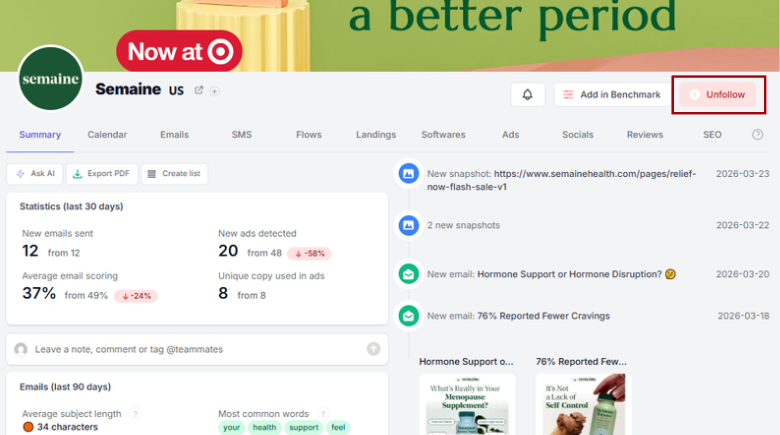
As explained in How to add brands, you can also unfollow a brand from a benchmark (Statistics tab) or its dashboard using the window that appears when you hover over the brand name.
You hover over the brand name and you click Following. You will be redirected to the brand page, where you can click Unfollow.
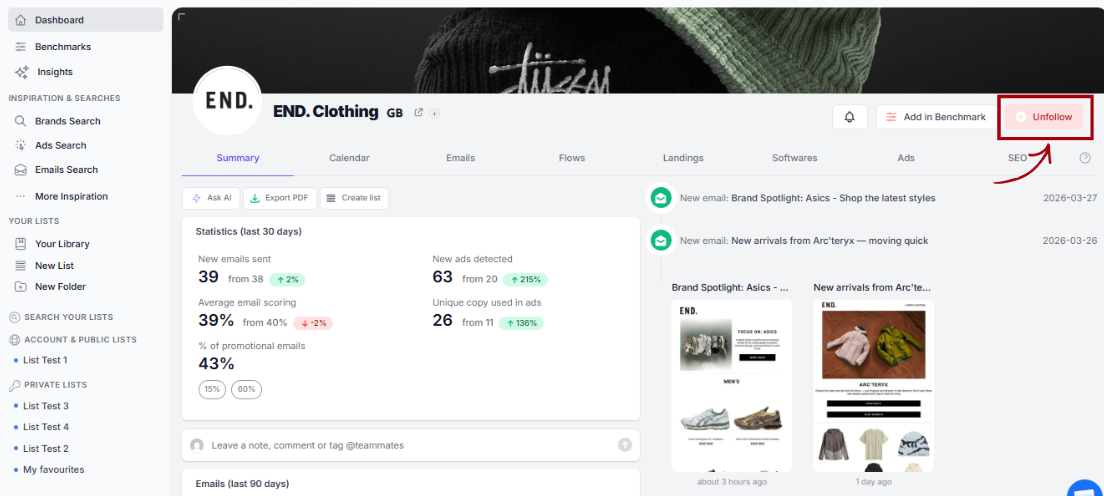
When you unfollow a brand, it’s automatically removed from the Followed Brands group, and the related data is removed from its benchmark and dashboard.

1-minute signup, no credit card required
with our experts


